
TripodShots Image Toolkit Pro
Crop, resize, compress, convert, watermark, effects and create custom collages. Images stay in your browser.
Quick Tools
Resize
Watermark Text
Crop Tools
Remove Outside Selected Area
Drag on the image to select the area you want to keep, then click below. Everything outside selection is removed.
Effects & Enhance
Custom Collage Maker
Upload multiple images, choose a layout, then drag images inside the collage area.
Compress / Convert / Download
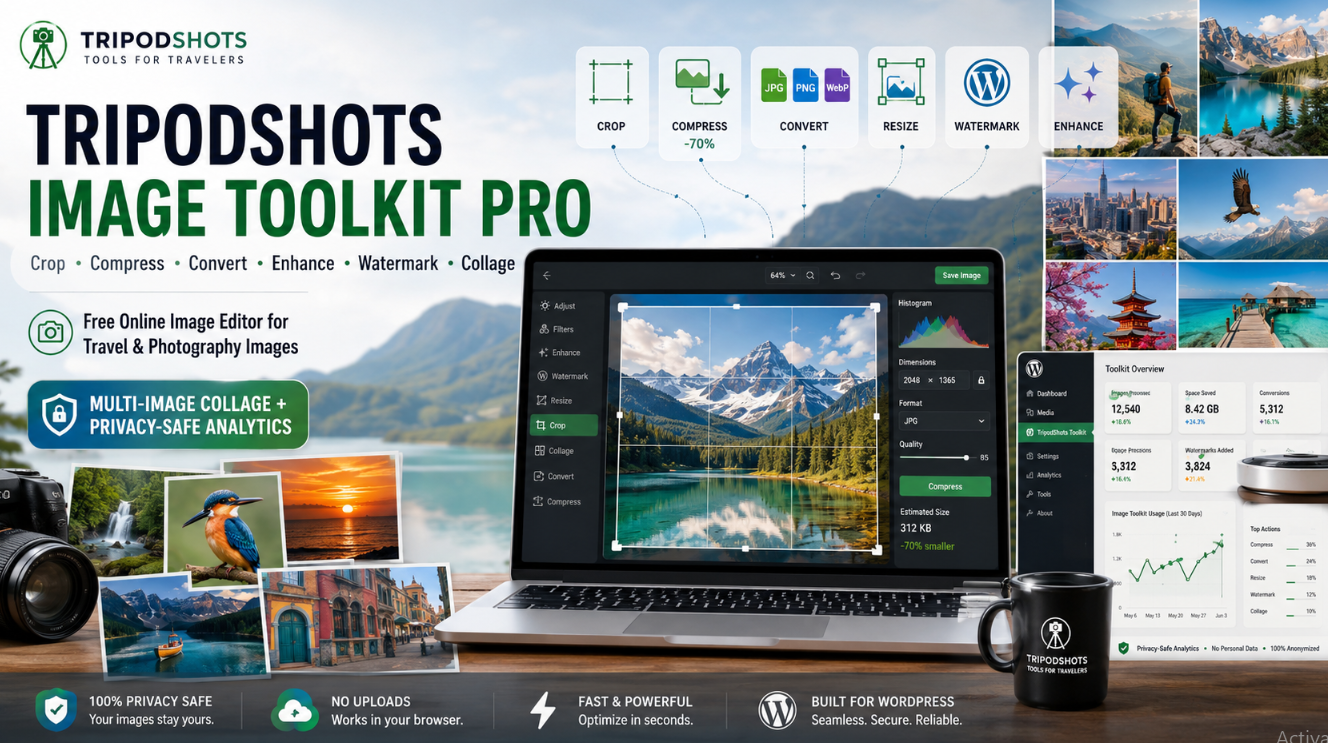
Do you need a simple way to edit your images online without installing heavy software? The TripodShots Free Online Image Editor is made for photographers, travellers, bloggers, students, small business owners, social media users, and anyone who wants quick image editing tools in one place.
Many people only need basic image editing. They want to crop a photo, reduce image size, convert JPG to WebP, add a watermark, resize an image for a blog, create a collage, or make a photo look better before uploading it online.
That is why we created the TripodShots Image Toolkit Pro.
It is a free browser-based image editing tool where users can upload images, edit them, and download the final result. The tool is designed to be fast, simple, privacy-friendly, and useful for daily image editing needs.
What Is the TripodShots Free Online Image Editor?
The TripodShots Free Online Image Editor is a collection of useful photo editing tools available directly on your browser.
You can use it to crop images, compress large photos, resize pictures, convert images into different formats, add watermark text, apply effects, create collages, and more.
The best part is that the tool is easy to use. You do not need advanced editing knowledge. You do not need Photoshop. No need to install an app. You can simply upload your image, choose the tool you want, edit your photo, and download it.
This makes it useful for people who want quick results without complicated software.
Why We Created This Image Editing Tool
TripodShots is focused on photography, travel, nature, images, and visual storytelling. Most users who visit a photography or travel website also need simple image tools.
For example, a traveller may want to compress photos before uploading them to a blog. A photographer may want to add a watermark before sharing work online. A student may need to crop an image for a project. A blogger may need a WebP image for faster website loading. A small business owner may want to create a quick collage for social media.
Instead of using many different websites for each task, this tool brings multiple image editing features into one place.
It is built for practical use.
Main Features of the Free Online Image Editor
The TripodShots Image Toolkit includes many useful features for photo editing and image optimisation.
You can use it for:
- Image cropping
- Free crop
- Square crop
- Circle crop
- Rounded corner crop
- Shape crop
- Image compression
- Image resizing
- JPG, PNG and WebP conversion
- Photo enhancement
- Brightness adjustment
- Contrast adjustment
- Saturation adjustment
- Mirror effect
- Rotate image
- Add watermark text
- Join two images
- Create photo collages
- Add travel-style photo effects
- Download edited image
These tools are helpful for both personal and professional image work.
Crop Images Online
Cropping is one of the most common image editing needs.
Sometimes an image has extra space. Sometimes the subject is not properly framed Sometimes a photo needs to fit a specific size for a website, social media post, blog banner, profile photo, product image, or thumbnail.
With this online image cropper, you can crop your image in different ways. You can use free crop or choose common shapes like square, circle, rounded corners, and other creative styles.
This is useful for profile photos, blog images, travel thumbnails, social media graphics, and website content.
Compress Large Images Without Losing Too Much Quality
Large image files can slow down websites. If you upload very heavy images to WordPress, your page speed may become poor. Slow pages can affect user experience and may also reduce conversions.
The image compressor tool helps reduce file size so your images become easier to upload, share, and use online.
This is useful for:
- WordPress blog images
- Travel photography posts
- Product images
- Portfolio images
- Social media uploads
- Email attachments
- Website banners
The goal is to make the image lighter while keeping it visually useful.
Convert Images to JPG, PNG or WebP
Different platforms need different image formats.
JPG is commonly used for photos because it gives smaller file sizes. PNG is useful when you need transparency or sharper graphics. WebP is popular for websites because it can provide good quality with lower file size.
With the TripodShots image converter, you can convert images into common formats such as JPG, PNG, and WebP.
This is especially helpful for WordPress website owners who want better image optimisation.
Resize Images for Websites, Blogs and Social Media
Image size matters. A very large image may look good, but it can also slow down your website. A very small image may load fast, but it may look blurry.
The resize tool helps you adjust image dimensions according to your need.
You can resize images for blog posts, featured images, social media posts, thumbnails, website sections, banners, profile images, and more.
This makes the tool helpful for bloggers, photographers, designers, marketers, and website owners.
Create Photo Collages Online
One of the most useful features of the TripodShots Image Toolkit is the photo collage maker.
You can upload multiple images and create different types of collage layouts. This is great for travel stories, event memories, nature collections, photography portfolios, food photos, product showcases, family memories, and social media posts.
The collage maker includes styles such as:
- Grid collage
- Masonry collage
- Travel postcard collage
- Film strip collage
- Polaroid board collage
- Panorama stack collage
- Circle mix collage
- Magazine style collage
A collage is a simple way to tell a visual story using multiple photos in one image.
Add Watermark to Your Images
If you share photos online, adding a watermark can be useful. A watermark helps show ownership and makes your image look more professional.
With the watermark tool, you can add simple text to your image before downloading it.
This is helpful for photographers, bloggers, travel creators, small businesses, and portfolio websites.
You can use your name, brand name, website name, or social media handle as a watermark.
Enhance Photos with Simple Adjustments
Sometimes a photo looks dull, dark, flat, or low contrast. You may not need advanced editing software. A few simple adjustments can improve the image.
The TripodShots photo enhancer gives users basic controls such as brightness, contrast, saturation, sharpness-style enhancement, and visual effects.
You can use these features to make travel photos, nature images, food photos, product shots, and blog images look better before sharing them.
The enhancement is browser-based and designed for quick improvement.
Add Creative Effects to Photos
If you want your image to look more attractive, you can apply simple effects.
The tool includes effects such as:
- Warm travel look
- Cool sky look
- Black and white
- Vintage
- Dramatic
- Matte
- Vivid nature
- Sepia
- Soft fade
- Vignette style
These effects are useful for creating mood and style in travel and photography images.
For example, a sunset image may look better with a warm travel effect, while a street photo may look more artistic in black and white.
Join Two Images Together
Sometimes you may want to compare two images or place them side by side. The join image feature helps you combine two images into one.
You can use this for:
- Before and after edits
- Travel comparison photos
- Product comparisons
- Collage-style posts
- Blog examples
- Social media visuals
This feature is simple but very useful for quick image layouts.
Circle Crop and Rounded Corner Crop
Circle crop is useful for profile photos, author images, team photos, and social media display pictures.
Rounded corner crop is helpful when you want a softer, modern image style. Many websites use rounded images because they look cleaner and more user-friendly.
The TripodShots Image Toolkit gives users both options, so they can create images that fit modern design needs.
Why This Tool Is Useful for WordPress Users
WordPress website owners often need to prepare images before uploading them.
If the image is too large, the website may slow down. If the image size is wrong, the layout may look bad as well as If the format is not optimised, the file may be heavier than needed.
This tool helps WordPress users quickly prepare images by cropping, resizing, compressing, converting, and enhancing them before upload.
It can be useful for:
- Blog featured images
- Service page images
- Gallery images
- Portfolio images
- Product photos
- Travel blog photos
- Banner images
- Social media graphics
Better images can improve the overall look and performance of a website.
Privacy-Friendly Image Editing
One important thing about the TripodShots Image Toolkit is that it is built with privacy in mind.
The tool is designed to process images in the browser. This means users can edit their images without needing to permanently store them on the website server.
Also, the tool does not need to collect personal details from users.
This makes the experience safer and more comfortable for visitors.
Best For Travel, Photography and Nature Images
Because TripodShots is connected with photography and travel, this tool is especially helpful for users who work with visual content.
It can help users edit:
- Travel photos
- Nature photos
- Bird photos
- Flower photos
- Landscape images
- Trekking pictures
- Food photos
- Resort images
- Adventure photos
- Blog banners
- Portfolio images
Whether you are sharing a mountain view, a sunset, a cityscape, a wildlife photo, or a travel memory, this tool can help make the image more useful and ready for online sharing.
Tips for Better Image Optimisation
Before uploading images to a website, it is good to optimise them properly.
Here are a few simple tips:
Use the correct image size instead of uploading very large photos.
Compress the image to reduce file size.
Use WebP format for website images when possible.
Crop the image to focus on the main subject.
Add watermark only when needed.
Use clear file names before uploading to WordPress.
Add proper alt text after uploading the image.
These steps can help your images look good and load faster.
Who Can Use This Free Online Image Editor?
This tool is useful for many types of users.
It can help:
- Photographers
- Travel bloggers
- Nature lovers
- WordPress website owners
- Students
- Social media creators
- Small business owners
- Designers
- Digital marketers
- Content writers
- Portfolio creators
- Online sellers
You do not need editing experience to use it. The tool is made for simple and quick image work.
Start Editing Your Images Online
If you need a quick and easy image editing tool, try the TripodShots Free Online Image Editor.
You can crop images, compress photos, convert image formats, resize pictures, create collages, add watermark text, use creative effects, and download the final image.
Use the free tool below and start editing your images online.
TripodShots Image Toolkit Pro
Crop, resize, compress, convert, watermark, effects and create custom collages. Images stay in your browser.
Quick Tools
Resize
Watermark Text
Crop Tools
Remove Outside Selected Area
Drag on the image to select the area you want to keep, then click below. Everything outside selection is removed.
Effects & Enhance
Custom Collage Maker
Upload multiple images, choose a layout, then drag images inside the collage area.
Compress / Convert / Download
Ready to Edit Your Photos?
Upload your image, choose the feature you need, edit it in your browser, and download your final photo.
Crop it. Compress it. Convert it. Enhance it. Create a collage. Make your image ready for your website, blog, social media, or travel story.
FAQ Section
What is the TripodShots Free Online Image Editor?
The TripodShots Free Online Image Editor is a browser-based image editing tool that lets users crop, compress, convert, resize, watermark, enhance, and create collages from images.
Is this image editor free to use?
Yes, the image editor is free to use on the TripodShots website. Users can upload images, edit them, and download the final result.
Can I compress images online with this tool?
Yes, you can compress large images to reduce file size. This is useful for websites, blogs, social media, and email sharing.
Can I convert images to WebP?
Yes, the tool supports common image format conversion, including JPG, PNG, and WebP.
Can I create photo collages?
Yes, you can upload multiple images and create different collage styles such as grid, masonry, postcard, film strip, polaroid, panorama stack, circle mix, and magazine-style collages.
Can I add a watermark to my image?
Yes, the tool allows users to add watermark text to images before downloading them.
Does the tool store my images?
No, the tool is designed to process images in the browser and does not permanently store user images.
Is this tool useful for WordPress website owners?
Yes, WordPress users can use this tool to prepare images before upload by cropping, resizing, compressing, converting, and optimising photos.
Can I use this image editor on mobile?
Yes, the tool is designed to work on desktop, tablet, and mobile devices.